Storage
The storage volumes which are attached to your job are specific to the project within which they are run. ie. All jobs run within one project will see the same files in a specific volume.
Important
Only files saved within a mounted storage volume are stored permanently.
Everything written outside a mounted volume (e.g. to /tmp or /root)
is lost when the job ends.
Choosing storage
Use this table to pick the right storage for each part of your workflow:
Use case |
Recommended storage |
|---|---|
Any dataset larger than a few GB |
S3 object storage. Mirrored across Ghent and Antwerp, so one upload works from any cluster. |
Training scripts and code |
|
Small dataset kept for convenience alongside code |
|
Model checkpoints and output logs |
|
High-frequency I/O during training (many small reads/writes) |
Copy from S3 or |
Temporary data within a single job (fastest possible access) |
|
Important
/project_ghent, /project_antwerp, and /project_madrid are subject to inode and capacity quotas.
Large datasets (ImageNet, Common Crawl, multi-TB checkpoints) will exhaust your quota quickly.
Store them on S3 instead. Project storage is best reserved for code, configs, and the
current run’s checkpoints and logs.
Tip
A common pattern for I/O-intensive training: pull your dataset from S3 into
/project_scratch or tmpfs at the start of the job, train from the fast local copy,
and write checkpoints back to /project_ghent. This combines S3’s large capacity with
local SSD speed.
Available storage volumes
/project_antwerp
On the Antwerp-based clusters (ie. clusters in the range 100-199), a
100TB DDN A3I storage cluster is available under
/project_antwerp.
This storage is:
Persistent: The data is not lost when your job stops
Shared: You can access it in multiple jobs running in the UA datacenter (=clusters in the range 100-199), and you’ll be able to access the same files.
Project Specific: Each project has its own separate version of this storage.
Project Private: You can only access the project storage of your own project.
Large
Fast
This storage has no size quota at the moment, but it does limit the
amount of “inodes”. This means you can only use a limited amount of
files and directories. There is an automatically generated file named
.quota.txt which contains details about your current usage.
The most straight-forward way to mount this storage is:
"storage": [
    {
       "containerPath": "/project_antwerp"
    }
],
This will cause a directory /project_antwerp to be available to you.
If you want this storage to be mounted under /project, you can
specify:
"storage": [
    {
       "hostPath": "/project_antwerp",
       "containerPath": "/project"
    }
],
/project_scratch
The scratch-storage is a fast slave-specific storage, typically backed by SSD’s in RAID0.
This storage is:
Persistent: The data is not lost when your job stops
Shared: You can access it in multiple jobs running on the same slave node, and you’ll be able to access the same files.
Project Specific: Each project has its own separate version of this storage.
Project Private: You can only access the project storage of your own project.
Large
Very Fast: local RAID0 SSD’s.
Breakable: This storage is not backed up, and RAID0 makes it fragile. Only store files here that you can afford to lose.
Consider binding your job to a specific slave with slaveName if you want to access files stored on a specific scratch storage.
The following slaves have a scratch storage available:
slave6A: The HGX-2 in Ghent has a 94TB scratch storage;slave103A: The DGX-2 in Antwerp has a 28TB scratch storage;slave103B: The DGX-1 in Antwerp has a 7TB scratch storage.
Caution
As these storages are backed by a RAID0 disk array, one disk failure can mean the whole storage is corrupted. For example, on the HGX-2 the storage is backed by 16 enterprise SSD’s with a MTBF of 2,000,000 hours.
Do only store files here that you can afford to lose.
To mount the project scratch folder to /project_scratch, you specify
it as containerPath:
"storage": [
    {
       "containerPath": "/project_scratch"
    }
],
This will cause a directory /project_scratch to be bound to the
local scratch disk inside your docker container.
If you want the scratch to be mounted under /project, you can
specify:
"storage": [
    {
       "hostPath": "/project_scratch",
       "containerPath": "/project"
    }
],
/project_ghent
This storage is:
Persistent: The data is not lost when your job stops
Shared: You can access it in multiple jobs running in the iGent datacenter (=clusters in the range 0-99), and you’ll be able to access the same files.
Project Specific: Each project has its own separate version of this storage.
Project Private: You can only access the project storage of your own project.
Large
Fast
Jobs on the Slices AI infrastructure running on Ghent-based slaves (clusters in the range 0-99) can access a shared storage for projects.
This is a fast storage, connected with a 10Gbit/s link or 100Gbit/s infiniband link depending on the node.
The data is shared instantly, and is thus instantly available everywhere (it’s the same NFS share everywhere).
Quotas are set on this storage. If you run out of space, and need more for a good reason, you can contact us to increase your quota. So don’t use or start new projects just to avoid quota.
Important
We don’t guarantee backups for this storage! You need to keep backups of important files yourself!
If you want this storage to be mounted under /project, you can
specify:
"storage": [
    {
       "hostPath": "/project_ghent",
       "containerPath": "/project"
    }
],
/project_madrid
On the Madrid-based clusters (clusters in the range 200-299), a shared
project storage is available under /project_madrid.
This storage is:
Persistent: The data is not lost when your job stops
Project Specific: Each project has its own separate version of this storage.
Project Private: You can only access the project storage of your own project.
Large
Fast
Important
We don’t guarantee backups for this storage! You need to keep backups of important files yourself!
To mount this storage, specify:
"storage": [
    {
       "containerPath": "/project_madrid"
    }
],
tmpfs
This storage is:
Not Persistent: The data gets lost when your job stops
Not Shared: You can only access this storage from a single job
Project Specific: Each project has its own separate version of this storage.
Project Private: You can only access the project storage of your own project.
“Small”
Extremely Fast
On all clusters, you can add temporary memory storage to jobs on the Slices AI infrastructure. This uses a fixed part of CPU memory (of the node the job runs on) as storage device.
The storage will be empty when the job starts, and is irrevocably lost when the job ends. So there is no persistent storage, and this storage cannot be shared between nodes. The main advantage of tmpfs storage is that it is very fast.
One typical use case is to copy a dataset that needs to be accessed very frequently to tmpfs at the start of the job.
This memory is used in addition to the memory you request for your job.
A job with request.resources.cpuMemoryGb set to 6, and a tmpfs
storage with sizeGb: 4 will use 10 GB of CPU memory. For
bookkeeping, all memory is counted as part of the memory your job uses,
so 10GB in the example.
To use tmpfs, you need to specify hostPath, containerPath and
sizeGb. hostPath needs to be "tmpfs". containerPath and
sizeGb can be chosen freely.
"storage": [
    {
       "hostPath": "tmpfs"
       "containerPath": "/my_tmp_data"
       "sizeGb": 4
    }
]
Accessing the storages outside of the Slices AI infrastructure
In this section, we discuss some options to access the storages from elsewhere.
Access over SFTP
GPULab supports SFTP on nearly all jobs. Go to SFTP section of the GPULab CLI for more information.
Syncing files with rsync
It is possible to use rsync to upload and/or download files to/from
GPULab. It is particularly useful for syncing large datasets, as it has
several mechanisms to speed this up.
rsync must be installed on both your own machine, as in the GPULab
job that you’re using to connect to:
# apt update; apt install -y rsync
To connect to a job, first retrieve the correct SSH-command to use via
slices ai ssh --show command <job-id>:
❯ slices ai ssh --no-exec --show command 643ff32d-2313-4798-9555-3805c356b8fa
ssh -p 5000 root@4b.gpulab.ilabt.imec.be
You can now adapt this command to use with rsync. In the following
example the contents of the local folder dataset is synchronized to
the folder /project_ghent/dataset:
❯ rsync -avz dataset/ --port 5000 root@4b.gpulab.ilabt.imec.be:/project_ghent/dataset
sending incremental file list
created directory /project_ghent/dataset
./
abc
def

sent 183 bytes  received 96 bytes  50.73 bytes/sec
total size is 8  speedup is 0.03
Access from JupytherHub
The iLab.t JupytherHub allows you to select which storage you want to mount. JupyterHub will show (one of) the selected storage(s) as the default folder, to prevent accidental data loss.
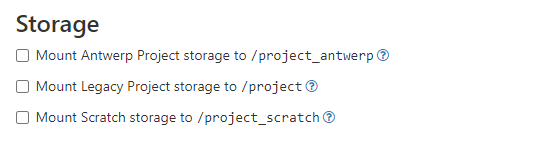
When using a terminal in JupyterHub, remember to switch to the correct folder to retrieve your files.
cd /project_scratch
Note
In some cases, you might get Invalid response: 403 Forbidden when
you try to access your files.
This is because the permissions on /project_ghent have been
changed and are too restrictive. This is typically done by the
virtual wall, and might be triggered by other users in your project.
To fix this, open a terminal in jupyterhub, and type:
sudo chmod uog+rwx /project_ghent
# The following sections is commented out as it is not in production yet:
Object storage with S3 API
SLICES has also object storage with the standard S3 API. This storage is currently mirrored between Gent and Antwerp and is ideal for larger datasets (and can be reached from all GPULab and other testbed nodes). See S3 storage documentation. You can use your existing account that you use for GPULab. Especially the Optimise locations might be interesting.